Restoring a Database
Restoring your database is taking a backup copy of an existing e-automate database and copying it over to an existing company database. Restoring a database is the way in which you get database backups in operation.
Log in to e-admin. You cannot restore your e-automate database with users logged in to e-automate. Verify all users are logged out prior to restoring your database. You can use the Managing Users and Licenses window. See Managing Hosts. If you are using e-info, your clients cannot be logged in to your database during restoration operations.
From your e-admin company list, select the database you want to restore.
Do one of the following:
From the e-admin Company menu, select Maintenance > Restore database....
If your e-admin toolbar is displayed, click [Maintenance] > Restore.
Right-click the database and select Maintenance > Restore database... from the right-click menu.
E-admin asks you to enter your administrative password for the selected company. In the Admin password for [Company ID] field, enter your password.
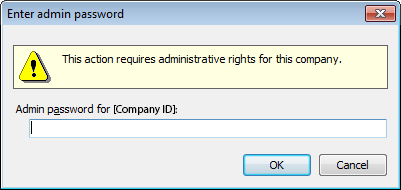
Click [OK].
E-admin opens the Restore Database Location window.
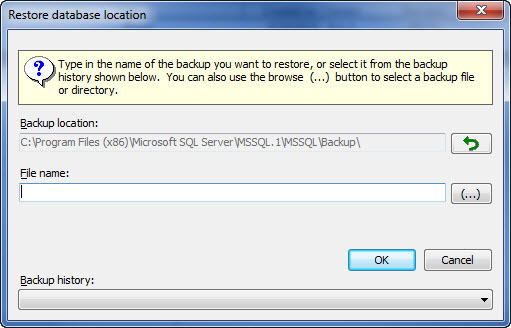
E-admin always displays the last navigated path in the Backup Location field. You can also use the down arrow to select a file path for the backup you want to restore.
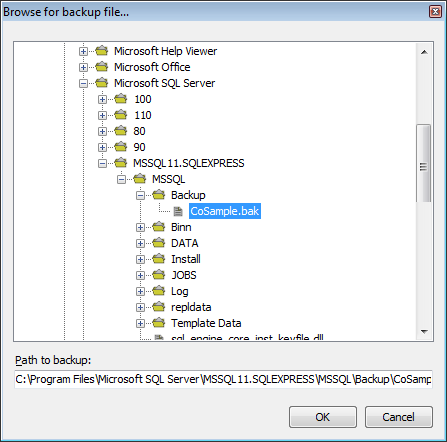
Browse for the backup file you intend to restore and select it. Click [OK] and e-admin displays your file in the Filename field.
After you have entered the path to your back up file, click [OK].
E-admin verifies you are sure you want to restore the database. Restoring a database causes all data in the currently selected database to be lost, replaced by the data in the backup file you have identified.
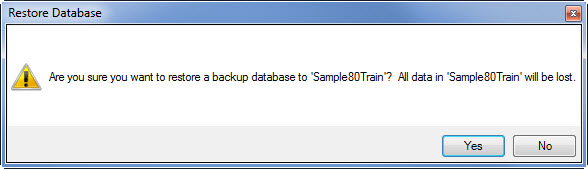
If you are sure, click [Yes] and e-admin begins the process. If not, click [No] and e-admin cancels the restore process.
E-admin restores the database. When the process is complete, e-admin indicates if the restoration was successful.
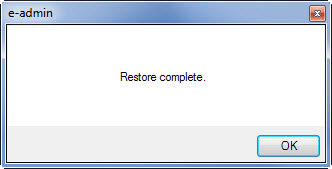
If you see the "Restore complete" message, click [OK]; your database has been restored.
If you shut down your e-info website for the restore, be sure to restart IIS services.
Non-supported ReleaseNon-supported Release
©2026 ECI and the ECI logo are registered trademarks of ECI Software Solutions, Inc. All rights reserved.