Backing Up a Database
Backing up your database preserves a copy of the database at a specific point in time. E-admin saves the copy of the backup to the location specified during the backup process. E-admin remembers the different locations in which you a have backup of your database so you can reuse the paths associated with your backups.
Log in to e-admin.
From the E-admin window, select the database you want to backup.
From the Company menu, select Maintenance > Backup database....
E-admin displays the Enter Admin Password window. In the Admin password for [Company ID] field, enter the appropriate admin password.
Click [OK]. If the password is valid, e-admin displays the Backup Database Location window.
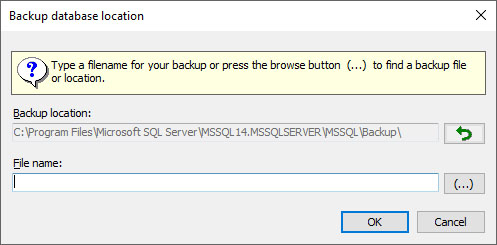
In the Backup Location field, make no change to use the path displayed or change the path by doing one of the following:
To use the default SQL server backup file location, click the Restore to SQL server default icon (the green arrow icon to the right of the Backup location field).
To specify a different backup file location at the time you select a file name, proceed to the next step; you can use the ellipsis icon (...) to the right of the File name field to navigate to an existing path location. If you select a different path without specifying a file name, e-admin will update the Backup location field with the path you select.
In the File name field, enter a file name, make no change to use the default file name displayed, or use the ellipsis icon (...) to the right of the File name field to navigate to an existing path and/or file name location.
Click [OK] to begin the backup process.
During the backup process, e-admin displays a Please Wait window. When e-admin completes the process, e-admin display a "Backup complete" message. Click [OK] to acknowledge this message. Your database is now backed up.
Release Support Ends July 31, 2026Release Support Ends July 31, 2026
©2026 ECI and the ECI logo are registered trademarks of ECI Software Solutions, Inc. All rights reserved.