Understanding the Modify Shipment Charges Report
* The Shipping Integration report is made available to anyone who has purchased the FedEx Ship Manager or UPS WorldShip integration with e-automate. For more information about these integrations, contact your Account Manager at eainsidesales@ecisolutions.com.
You use the Modify Shipment Charges report to insert, update, and/or review the values the system uses when calculating shipment charges associated with the FedEx Ship Manager or UPS WorldShip shipping integration with e-automate.
You use the report's Type filter to indicate if you want to insert values (no values currently exist), update one or more existing values, or read (view) any existing values.
When inserting new values or updating existing values, you use the report's Flat rate, Markup, Max order charge, Outcost threshold, and Default charge freight filter options to specify the value you want the system to use for each filter option when performing the insert or update.
When updating existing values, you use the report's Update values filter options to specify the filter options (Flat rate, Markup, Max order charge, Outcost threshold, and Default charge freight) you want the system to include in the update.
When you process the report, the report lists the following information:
Action (Insert, Update, or Read if successful; None [plus error message] if unsuccessful)
Flat rate
Markup
Max order charge
Outcost threshold
Default charge freight
Getting to the ReportGetting to the Report
Log in to e-automate with the appropriate permissions.
Click [Reports] to open the Report Console window.
In the left pane, click All reports or Custom reports. The system displays the report list in the right pane.
In the right pane, double-click Modify Shipment Charges to open the Modify Shipment Charges window.
Setting Report ParametersSetting Report Parameters
When setting report parameters, each parameter you have selected displays in the upper portion of the right pane. The parameters do not reset. The report displays with the parameters that were set the last time you ran the report. You can set the following parameters:
ActionAction
To set the Action parameter, do the following:
In the left pane of the Modify Shipment Charges window, select Action to display the Action region in the right pane.
In the Action region, set Action to one of the following:
Insert: Use this option to set the shipment charges values when no shipment charges values exist.
Update: Use this option to change one or more of the shipment charges values when the shipment charges values already exist.
Read: Use this option to have the system report the current shipment charges values.
Flat RateFlat Rate
If you want the shipping integration to use a flat rate monetary amount (e.g., $14.95) as the shipping charge for each shipment (overriding the shipping carrier's published shipping charge), you use the Flat rate filter option to specify the flat rate amount to charge for shipping.
To specify the value to use for the Flat rate, do the following:
In the left pane of the Modify Shipment Charges window, select Flat rate to display the Flat rate region in the right pane.
In the Flat rate region's entry field, enter the monetary amount you want the system to use when inserting/updating this shipment charge value.
MarkupMarkup
If you want the shipping integration to calculate the shipping charge based on a percentage markup (e.g., 12%) of the shipping carrier's published charge, you use the Markup filter option to specify the markup percentage to use for calculating the shipping charge.
To specify the value to use for the Markup, do the following:
In the left pane of the Modify Shipment Charges window, select Markup to display the Markup region in the right pane.
In the Markup region's entry field, enter the percentage you want the system to use when inserting/updating this shipment charge value.
Max Order ChargeMax Order Charge
If you want the shipping integration not to charge for shipping if the total order amount is above a specified monetary amount (e.g., $100.00), you use the Max order charge filter option to specify the maximum total order amount above which the shipping integration will not charge for shipping.
To specify the value to use for the Max order charge, do the following:
In the left pane of the Modify Shipment Charges window, select Max order charge to display the Max order charge region in the right pane.
In the Max order charge region's entry field, enter the monetary amount you want the system to use when inserting/updating this shipment charge value.
Outcost ThresholdOutcost Threshold
If you want the shipping integration to provide a visual indicator to assist with determining if insurance should be added to your packages based on a specified outcost threshold (e.g., $200.00), you use the Outcost Threshold filter option to specify the outcost threshold above which the shipping integration will display the amount of the outcost so that you can use it to determine if you want to add insurance to the order.
To specify the value to use for the Outcost Threshold, do the following:
In the left pane of the Modify Shipment Charges window, select Outcost Threshold to display the Outcost Threshold region in the right pane.
In the Outcost Threshold region's entry field, enter the monetary amount you want the system to use when inserting/updating this shipment charge value.
Default Charge FreightDefault Charge Freight
If you want to indicate if the shipping integration should—or should not—charge for shipping by default when the total order amount is zero ($0.00), you use the Default charge freight filter option to specify the default option to use (i.e., yes or no).
To specify the value to use for the Default charge freight, do the following:
In the left pane of the Modify Shipment Charges window, select Default charge freight to display the Default charge freight region in the right pane.
In the Default charge freight region, set Default charge freight to one of the following:
Yes: Do charge for shipping when the total order amount is zero ($0.00).
No: Do not charge for shipping when the total order amount is zero ($0.00).
Update ValuesUpdate Values
If you set Action to Update, you use the Update values filter options to specify the shipment charges option(s) you want the system to include in the update using the value(s) specified for the report's shipment charges filter(s) (Flat rate, Markup, Max order charge, Outcost threshold, and/or Default charge freight).
To specify the shipment charges values you want the system to include in the update, do the following:
In the left pane of the Modify Shipment Charges window, select Update values to display the Update values region in the right pane.
In the Update values region, do the following:
To update the shipment charge's Flat rate option using the value specified for report's Flat rate field when you process this report, check the Update flat rate checkbox; otherwise, leave this checkbox unchecked.
To update the shipment charge's Markup option using the value specified for report's Markup field when you process this report, check the Update markup checkbox; otherwise, leave this checkbox unchecked.
To update the shipment charge's Max order charge option using the value specified for report's Max order charge field when you process this report, check the Update max order charge checkbox; otherwise, leave this checkbox unchecked.
To update the shipment charge's Outcost threshold option using the value specified for report's Outcost threshold field when you process this report, check the Update outcost threshold checkbox; otherwise, leave this checkbox unchecked.
To update the shipment charge's Default charge freight option using the value specified for report's Default charge freight field when you process this report, check the Update default charge freight checkbox; otherwise, leave this checkbox unchecked.
Processing the ReportProcessing the Report
On the Modify Shipment Charges window, click [OK] to process the report.
Understanding Report ResultsUnderstanding Report Results
Following is a sample Shipment Charges report.

The following table provides information on the values listed in the Shipment Charges report.
|
Report Label |
Description |
|
This field displays the action that was completed during report processing. If the system successfully completed the Action you specified for this report (i.e., Insert, Update, or Read), this field will display the Action value that you selected (i.e., Insert, Update, or Read, respectively). If the system could not complete the Action you specified for this report (e.g., if values already exist and you attempted to insert new values instead of updating the existing values), the Action column will display an appropriate message (e.g., None. Cannot insert values when values already exist. Use Update action to edit existing values). |
|
|
This field displays the shipping integration's Flat rate value. If this field is blank, no value is specified for this shipment charge option. If this field is populated, the shipping integration uses this flat rate amount as the shipping charge on each order shipment instead of the shipping carrier's published shipping charge. Note: While the sample report shows both a Flat rate and a Markup value for illustration purposes, you should only populate one of these two fields. The other field should be set to zero. Both fields represent different options for determining the default freight amount to charge on a sales order shipment.
|
|
|
This field displays the shipping integration's Markup value. If this field is blank, no value is specified for this shipment charge option. If this field is populated, the shipping integration multiplies the shipping carrier's published shipping charge by this percentage to calculate the marked up shipping charge to use for the order shipment. Note: While the sample report shows both a Flat rate and a Markup value for illustration purposes, you should only populate one of these two fields. The other field should be set to zero. Both fields represent different options for determining the default freight amount to charge on a sales order shipment.
|
|
|
This field displays the shipping integration's Max order charge value. If this field is blank, no value is specified for this shipment charge option. If this field is populated and if the total order amount is above this amount, the shipping integration overrides the shipping charge to $0.00 for the order shipment. Note: You can override this setting on a per-customer basis using a customer custom properties configuration with a NoFreightMinOrder$ attribute. For more information, see the Using FedEx Ship Manager with E-automate or Using UPS WorldShip with E-automate topic that appies to your shipping integration.
|
|
|
This field displays the shipping integration's Default charge freight value. If this field is blank, no value is specified for this shipment charge option. If this field is populated, the shipping integration uses this value to determine if freight is (Yes) or is not (No) charged by default on order shipments where the total order amount is $0.00. Note: You can override this setting on a per-customer basis using a customer custom properties configuration with a Shipment Charge Freight attribute. For more information, see the Using FedEx Ship Manager with E-automate or Using UPS WorldShip with E-automate topic that applies to your shipping integration.
|
|
|
This field displays the shipping integration's Outcost threshold value. If this field is blank, no value is specified for this shipment charge option. If this field is populated, the shipping integration uses this value to determine if the amount of the outcost should be displayed in a mapped field that you can then use to determine if (and how much) insurance should be added to the order shipment. If the amount of the outcost associated with the sales order is above this amount and if the Outcost threshold value is properly mapped to a UPS WorldShip or FedEx Ship Manager field (e.g., the Reference 4 field), the system populates the applicable field (e.g., the Reference 4 field) with the amount of the outcost so that the order shipment can be insured for this amount.
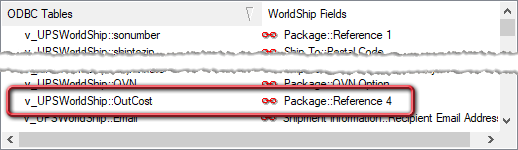
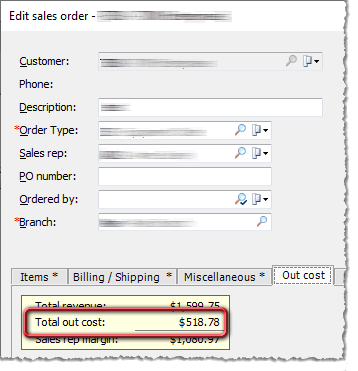
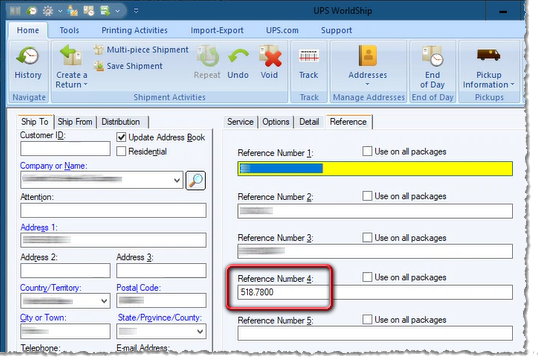
Example: A company wants to see the outcost associated with a sales order if the outcost is above $200.00. The company uses this report to set the Outcost threshold value to $200.00. The company is using the UPS WorldShip integration with e-automate and maps the ODBC Tables column's v_UPSWorldShip::OutCost field to the WorldShip Fields column's Package::Reference 4 field. In e-automate, a sales order has a Total out cost of $518.78. Since this order's Total out cost of $518.78 is greater than the specified Outcost threshold of $200.00, and since the ODBC Tables column's v_UPSWorldShip::OutCost field to the WorldShip Fields column's Package::Reference 4 field, the system displays the Total out cost of 518.78 in the Reference Number 4 field for the order in UPS WorldShip.
The company can then use this information to determine the amount for which to insure this order shipment. If the sales order's Total out cost had been below the specified Outcost threshold, the mapped reference field (Reference Number 4 in this example) would have been blank. |
Non-supported ReleaseNon-supported Release
©2024 ECI and the ECI logo are registered trademarks of ECI Software Solutions, Inc. All rights reserved.